Windows Subsystem for Linux (WSL) lets you run AlmaLinux inside Windows - including both command-line and GUI apps. WSL is great for users who want to use Linux tools alongside their usual Windows programs.
Supported Versions
The following AlmaLinux OS versions are available for installation via both methods - Microsoft Store and the WSL CLI tool:
- AlmaLinux OS 8
- AlmaLinux OS 9
- AlmaLinux OS 10
Additionally, AlmaLinux OS 10 x86_64_v2 images are available. These images are not published to the Microsoft Store or microsoft/WSL<?XML:NAMESPACE PREFIX = "[default] http://www.w3.org/2000/svg" NS = "http://www.w3.org/2000/svg" /> (opens new window)and can only be downloaded from the Releases (opens new window)section of the AlmaLinux WSL images GitHub repository. They are available for offline installation via wsl --install --from-file (see Install AlmaLinux OS 10 x86_64_v2below).
TIP
If you are looking for AlmaLinux OS Kitten image, please, visit the AlmaLinux OS Kitten page.
Prerequisites
To start with, let's check what is the Windows build number:
- Press Win + R.
- Run the
winvercommand and press OK or Enter:winver - You'll get About Windows information saying Microsoft Windows or Windows Server version. If OS Build is
19041or higher on Windows 10 or1709or higher on Windows Server 2019, continue. If not, please, check the troubleshootingsection.
Install/Update WSL
-
Right-click on the Start menu and open PowerShell or Windows Command Prompt in administrator mode by selecting "Run as administrator".
-
Install WSL without any specific Linux distribution. This command prepares your system to run Linux on Windows but doesn't yet set up the actual Linux environment.
wsl --install --no-distribution -
Restart your machine to finish the installation.
-
After reboot, check WSL status:
wsl --status -
Make sure you have the latest version installed by comparing the version on output with stable releases (opens new window):
wsl --version -
If your WSL version is not latest, update it:
wsl --updateIf the WSL version is still not updated, see the check troubleshootingsection for the alternative methods for updating.
Install AlmaLinux OS
Now when you have the latest version of WSL installed, you can install AlmaLinux OS as a WSL distribution.
There are two methods and formats of installation and packaging available:
- WSL: It is a native packaging format.
- It can be downloaded and installed either via the
wsltool or the.wslfile. - Downloaded from github.com/AlmaLinux/wsl-images/releases (opens new window)and installed via the
wsltool or with just double-clicking.
- It can be downloaded and installed either via the
- Microsoft App Store (opens new window).
Install AlmaLinux OS via the WSL method
The WSL format is a modern and recommended way of installation. The WSL version should be 2.4.4 and higher.
-
List available Linux distributions:
wsl --list --onlineor short form:
wsl -l -o -
You will see AlmaLinux OS versions available as
AlmaLinux-8,AlmaLinux-9,AlmaLinux-Kitten-10andAlmaLinux-10. -
Install the needed version. Example command for AlmaLinux OS 10 installation:
wsl --install AlmaLinux-10 -
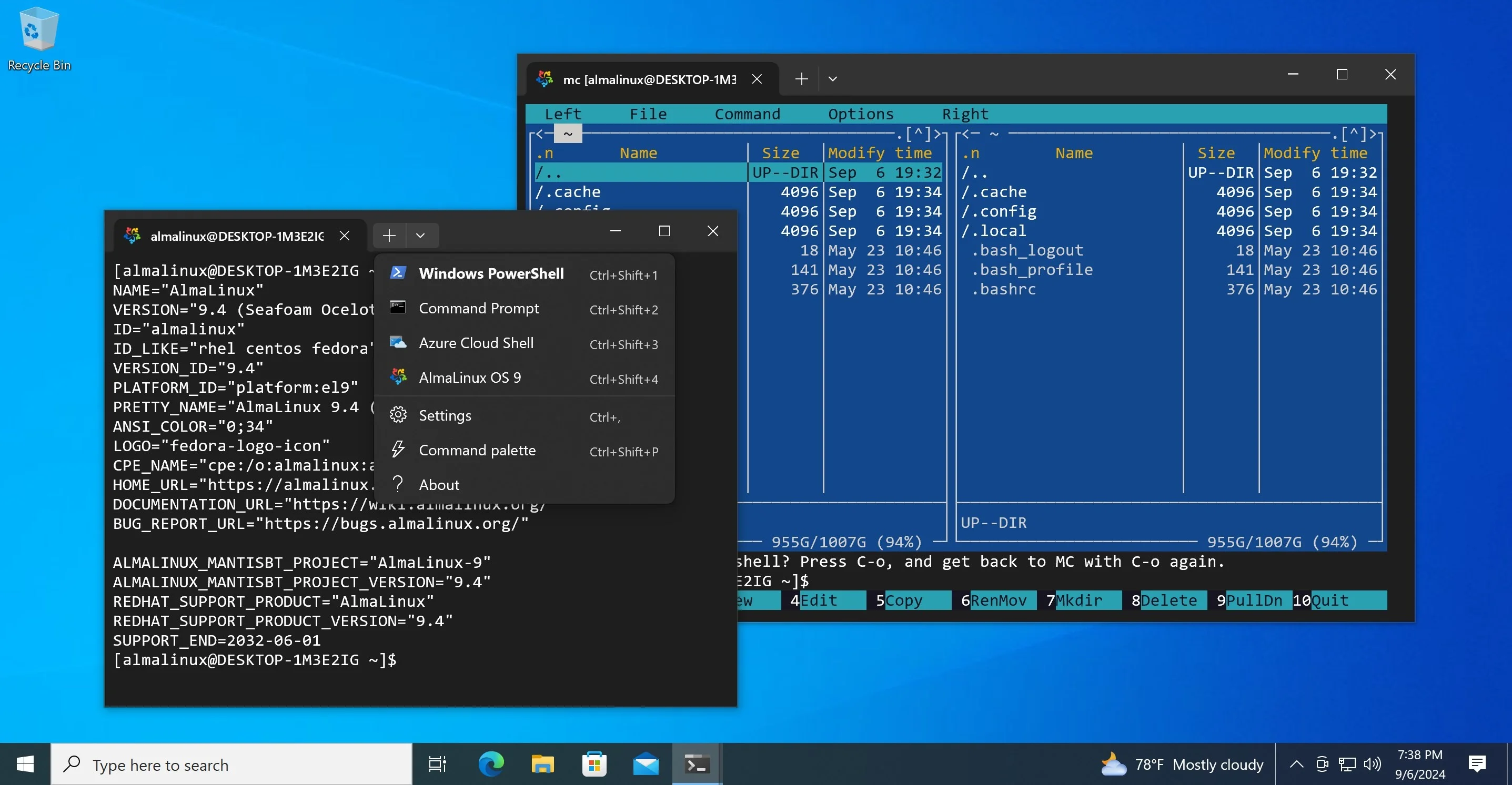
After the installation is completed, the AlmaLinux OS will be available as an application in a new tab with its icon an color-scheme.
-
Verify you have it installed. Show all installed distros:
wsl --list --verboseor short form:
wsl -l -v -
Start your AlmaLinux:
- Open it from the Windows Terminal. Click the small arrow ▾ next to the tab or the “+” icon. You’ll see a dropdown with available WSL distros listed. Click AlmaLinux OS. It will open in a new tab, ready to use.
- Or run the command:
wsl -d AlmaLinux-10
Install AlmaLinux OS via the Microsoft App Store
-
Install the needed AlmaLinux OS app from the Microsoft Store:
-
After the installation is completed, the AlmaLinux OS will be available as an application in a new tab with its icon and color scheme.
-
Verify you have it installed. Show all installed distros:
wsl --list --verboseor short form:
wsl -l -v -
Start your AlmaLinux:
- Open it from the Windows Terminal. Click the small arrow ▾ next to the tab or the "+" icon. You'll see a dropdown with available WSL distros listed. Click AlmaLinux OS. It will open in a new tab, ready to use.
- Or run the command:
wsl -d AlmaLinux-10
Install AlmaLinux OS 10 x86_64_v2
AlmaLinux OS 10 x86_64_v2 images are not published to the Microsoft Store or microsoft/WSL (opens new window). They can only be downloaded from the Releases (opens new window)section of the AlmaLinux WSL images GitHub repository and installed offline using the wsl tool.
-
Download the latest
.wslfile for x86*64_v2 from github.com/AlmaLinux/wsl-images/releases (opens new window)(e.g.AlmaLinux-10.1_x64_v2*<version>.wsl). -
Install it using the
--from-fileoption:wsl --install --from-file AlmaLinux-10.1_x64_v2_<version>.wsl -
Start your AlmaLinux:
- Open it from the Windows Terminal dropdown, or run the command:
wsl -d AlmaLinux-10-x64_v2
- Open it from the Windows Terminal dropdown, or run the command:
Extras
Official Microsoft documentation
- The official documentation of WSL covers more use cases such as setup database, GPU acceleration and Mount an external drive or USB See: learn.microsoft.com/en-us/windows/wsl/setup/environment (opens new window).
- The official docmentation for running GUI apps on AlmaLinux OS: learn.microsoft.com/en-us/windows/wsl/tutorials/gui-apps (opens new window).
- The official documentation for Remote Development support of VS Code on AlmaLinux OS WSL distribution Remote: learn.microsoft.com/en-us/windows/wsl/tutorials/wsl-vscode (opens new window).
Docker Desktop integration
To enable AlmaLinux OS integration with the Docker Desktop: Settings → Resources → WSL Integration.
Troubleshooting
Manual installation for earlier versions of Windows and Windows Server
Alternative methods of updating of WSL
Method 1: Download the latest update from the GitHub rather than the Microsoft Store
wsl --update --web-download
Method 2: Manually download and install WSL from the GitHub
Download and install the MSIXBundle (e.g. Microsoft.WSL_2.4.13.0_x64_ARM64.msixbundle) from a stable release (opens new window)



0 commenti:
Post a Comment