Pixelfed only allows posts which contain at least one image. You can not post a text only note.
Click on the “Create New Post” button when sitting on the home screen, or any timeline. If you do not see the button, click your profile on the top right of the page and select the option to Create.
You will see….
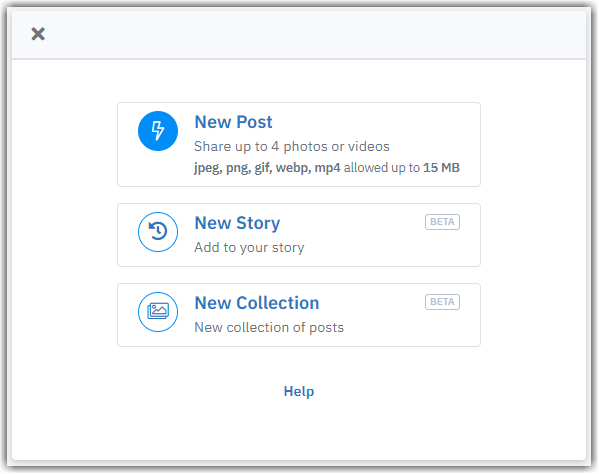
Select the “New Post” option. You will also be shown the file formats your server will accept, and how many images you can attach to a single post.
You will then be given the option to select your first photo from your computer/mobile device to add to the post. Once selected you can add more.
Post Options
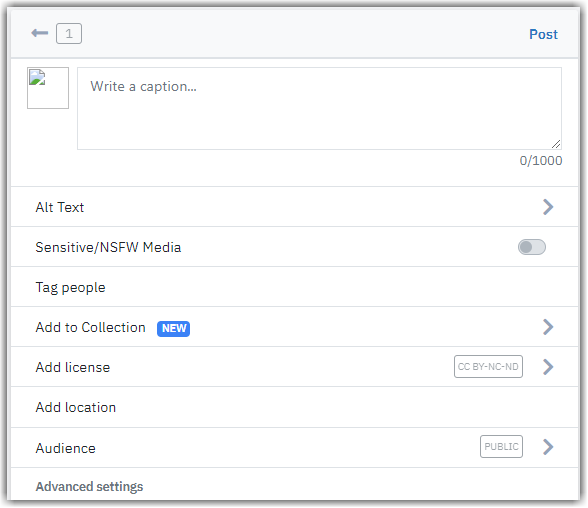
The Caption is the text that will appear below the photo(s) with the post. The length of the text will be limited, in this case to 1,000 characters. Your own server may vary. In the caption you can include
You can edit any of your previous post at a later date.
-
Click on your own profile image, which will show a list of all your photos
-
Click the post you wish to edit
-
Use the three dots … on the top right of the post, and select Edit
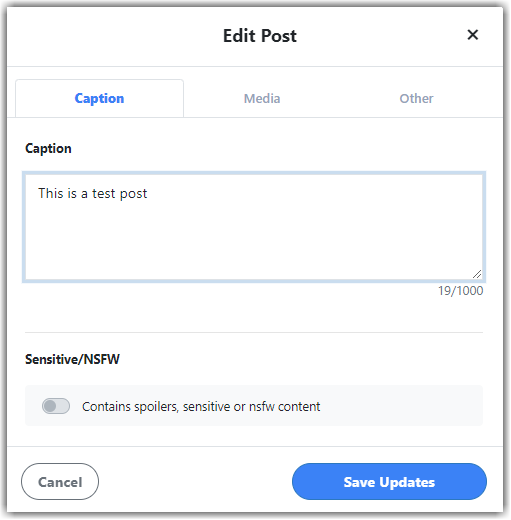
You can edit the caption, the Alt Text, update the location, or toggle the sensitively switch.
Note: You can not remove or add new images. If you need remove a photo, use the Delete option under the three dots (…) to delete the entire post and create a new one



0 commenti:
Post a Comment